How to Check Your AO Code Online Without Login
You do not need to log in to the income tax portal to find out your AO code. A lot of people assume they need a password or a full account to check their jurisdiction. They do not. There is a quick lookup that only needs your PAN and your registered mobile number. Here is exactly how it works, plus what to do if you are applying for a fresh PAN and have no jurisdiction yet.
Two Different Situations
Before the steps, know which case you are in, because the method differs:
- You already have a PAN and want to find the AO code currently assigned to it.
- You are applying for a new PAN and need to pick the correct AO code for your address.
Both can be done without logging in. The tools are just different.
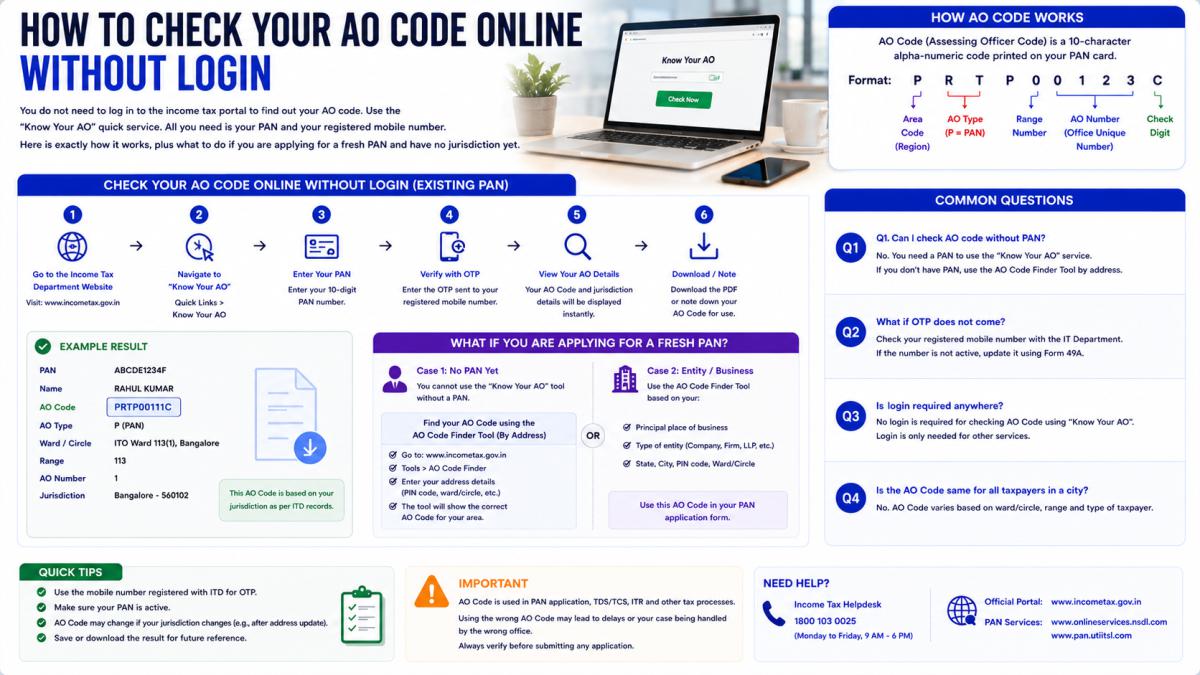
If You Already Have a PAN: "Know Your AO"
This is the fastest no-login method. It uses an OTP to your mobile instead of a password.
- Go to the Income Tax e-filing portal homepage.
- Under the "Quick Links" section, click "Know Your AO".
- Enter your PAN and your registered mobile number, then click Continue.
- An OTP is sent to your mobile. Enter it and click Validate.
- Your details appear: name, area code, AO type, range code, AO number, PAN status, the building name, your taxpayer jurisdiction, and the ward office email.
That is your full AO code and jurisdiction, without any account login. The only requirement is that your mobile number can receive the OTP.
If You Are Applying for a New PAN: Use the AO Search Tools
For a fresh application you do not have a PAN to look up yet, so you find the correct code by searching your city. These tools need no login at all, not even an OTP.
Through the Protean (NSDL) PAN AO search:
- Open the Protean PAN AO Search page.
- Select your city using the alphabetical list.
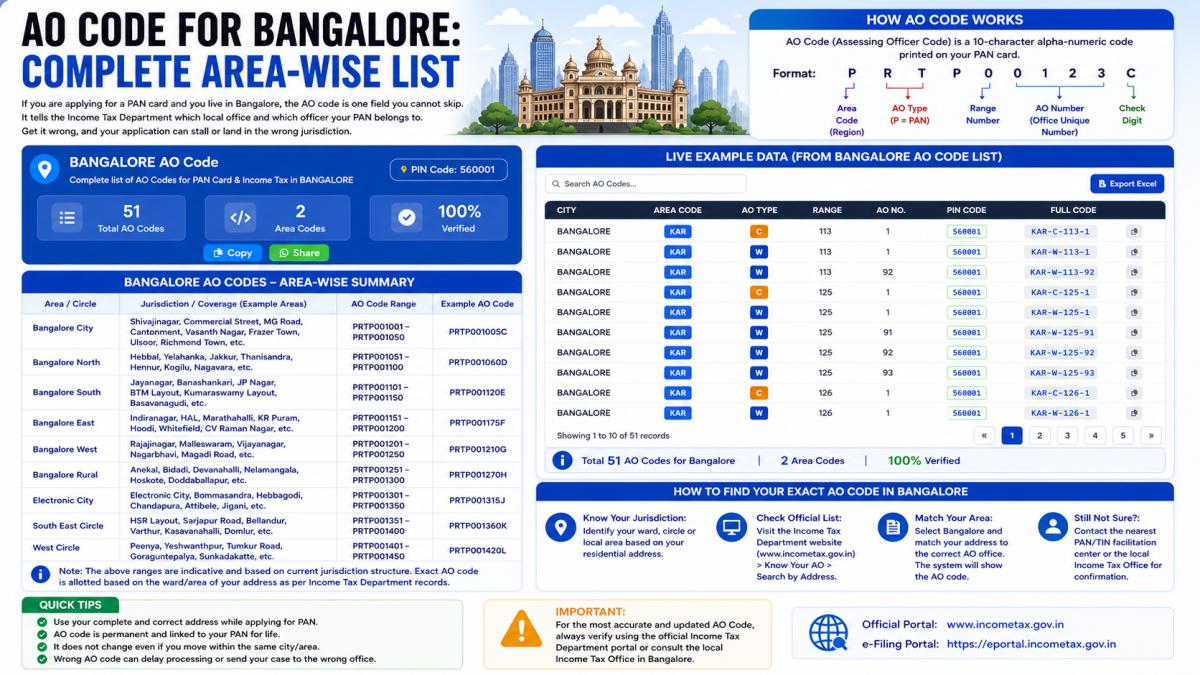
- A table of AO codes for your city appears with area code, AO type, range code, AO number, and descriptions.
- Match the description to your address and taxpayer category.
Through the UTIITSL AO search:
- Go to the UTIITSL PAN Card Services section and open "Search for AO Code Details".
- Choose the AO code type, then click View Details.
- Select your city using the matching alphabet.
- The codes display with all four parts and their descriptions.
Neither of these asks you to sign in. They are open search tools.
What You Will See, and What It Means
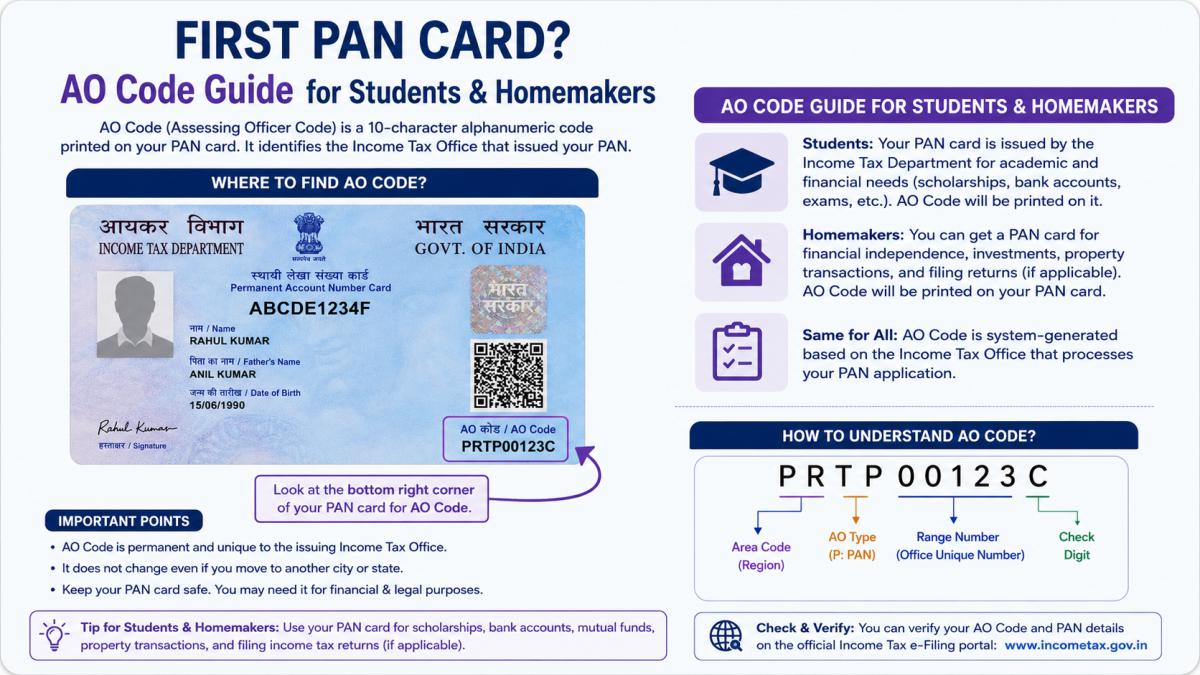
Whichever method you use, the result breaks down into four parts:
- Area Code: three letters for your region.
- AO Type: W for Ward, C for Circle.
- Range Code: the number for your range.
- AO Number: your specific officer's number.
Put together, those four are your AO code.
A Few Practical Notes
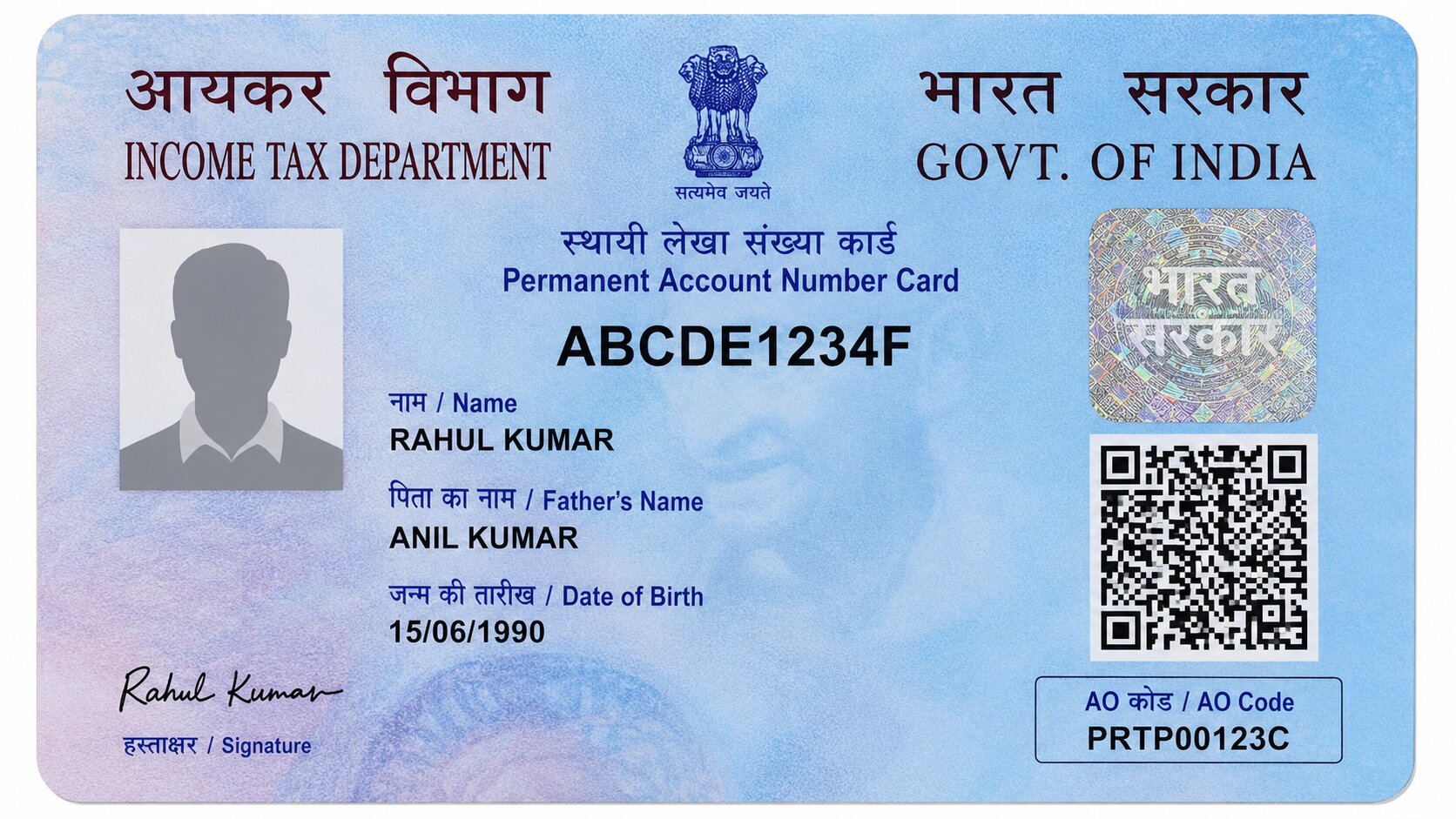
- The card does not show it. Your AO code is not printed on the physical PAN card, which is why the online lookup exists.
- Mobile must be registered. For "Know Your AO", the OTP goes to the mobile number linked to your PAN. If that number has changed, you may need to update it first.
- It can change over time. The department reorganises wards and circles periodically, so the AO code you see today may differ later even without you moving.
When the Online Tools Are Not Enough
If you are applying fresh and the city list shows several entries you cannot tell apart, or your mobile is not receiving the OTP, the reliable fallback is your local Income Tax Office. They can confirm the exact current AO for your address. For a one-time application, that quick check beats guessing.
Bottom Line
You can find your AO code without logging in. If you already have a PAN, use "Know Your AO" on the Income Tax portal with just your PAN and a mobile OTP. If you are applying fresh, use the Protean or UTIITSL city search, which needs no login at all. The code always has the same four parts, it is not printed on your card, and if anything is unclear the local Income Tax Office can confirm it.
Disclaimer: This is an informational guide, not a government website. AO codes are managed by the Income Tax Department of India. Always verify your details through the official Income Tax, Protean (NSDL), or UTIITSL portals.